---
title: Add hidden fields to your Webflow form
description: "## Scope Webflow is a website builder that allows you to create beautiful websites. It contains its own form builder to capture leads directly on Webflow. With Leadsources, you can **track the source of the leads generated in Webflow**, alongside…"
url: "https://help.leadsources.io/docs/add-hidden-fields-webflow/"
updated: "2026-05-21"
category: Add Hidden fields
---
# Add hidden fields to your Webflow form
## Scope
Webflow is a website builder that allows you to create beautiful websites. It contains its own form builder to capture leads directly on Webflow.
With Leadsources, you can **track the source of the leads generated in Webflow**, alongside 6 other lead source data.
In this guide, we will show you **how to add hidden fields in Webflow**to start capturing the source of your leads.
[Add hidden fields to your Webflow form](https://www.youtube.com/embed/NWqDNS9pFao?feature=oembed)
## Set up the hidden fields
From your Webflow dashboard, open the site where you want to add the hidden fields.
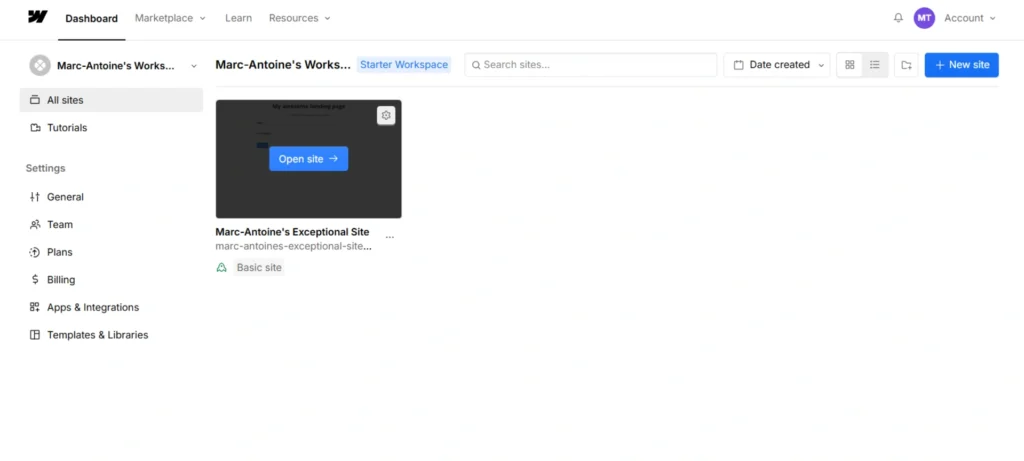
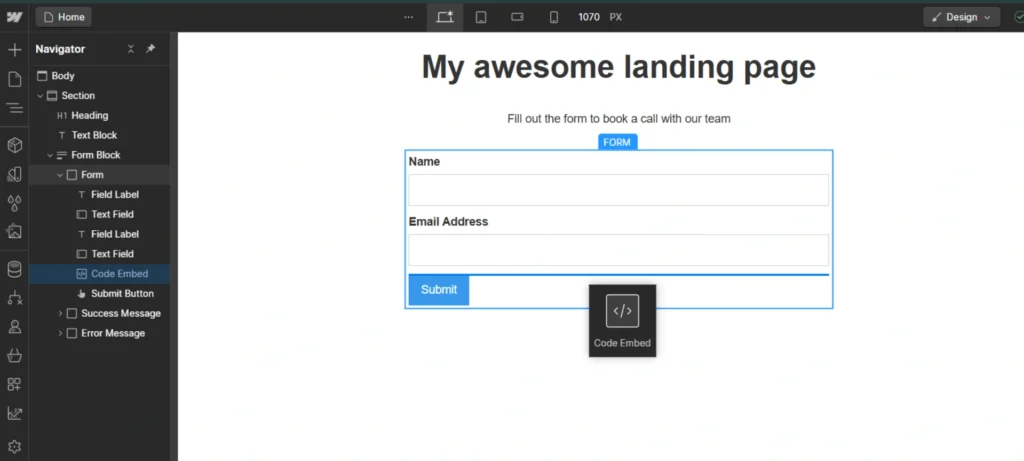
In your Form Block, add an **embed** element. Add it right above the submit button.
The **Code embed editor** opens. Simply paste the following html code:
```
```
The window should look like this:
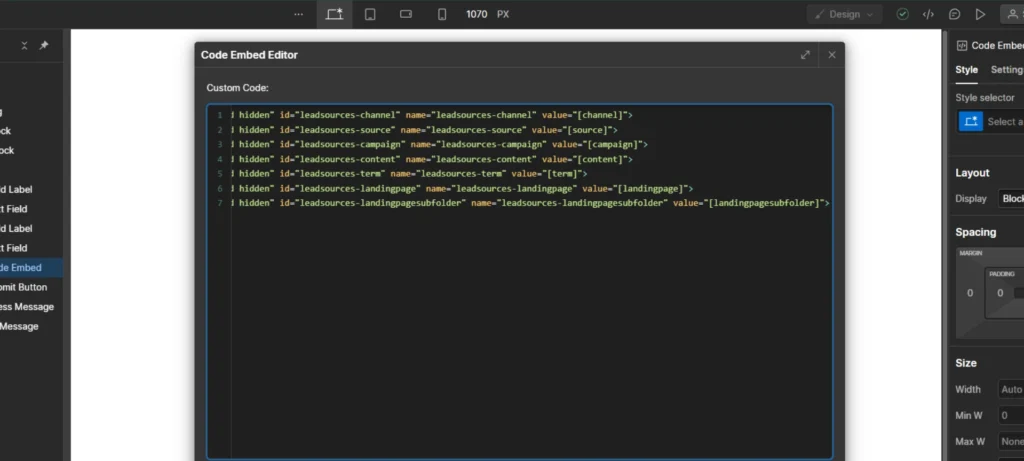
Click **Save & Close**
**Publish**your changes.
You are all set!
Leadsources will **capture****and store the leads data****in these 7 hidden fields**. This data will be visible from the Webflow submissions page (under Settings --> Forms), alongside the form's responses (name, email, etc.).